
From projects and worktrees to running tasks
Project discovery, Git information, and a task location picker connect tasks to the right checkout. Embedded monitoring brings installation metrics into the workspace.
A repository may have several working directories, each with a different branch and a different job in progress. Across connected machines, finding the right checkout becomes part of starting work. A task needs more than a terminal: it needs a clear connection to the files that terminal will use.
cibot now brings discovered projects and worktrees into that choice. A Runner (the machine connection that runs commands) reports the checkouts in its workspace. The browser presents those locations with Git information and uses them when creating a task.
Existing checkouts become visible projects
The Projects view lists repositories and worktrees discovered on connected Runners. A worktree is a separate working directory for a Git repository. Linked worktrees belong to the same project, while separate clones remain separate projects, even when they use the same remote repository.
This distinction matters when several branches are in use at once. A main checkout and a linked checkout for a repair can appear together, with their own paths and Git state. The project identifies the repository; the worktree identifies the working directory where a task will run.
Discovery uses existing files under the Runner’s workspace. It does not clone repositories or create worktrees. The Projects view can be filtered by project name, branch, path, or Runner name, so the same repository name on two machines does not have to be the only clue available.
Discovery and Refresh bring new locations into the inventory without starting a terminal. That keeps browsing projects separate from creating work: a discovered checkout can be available for selection without becoming another task in the sidebar.
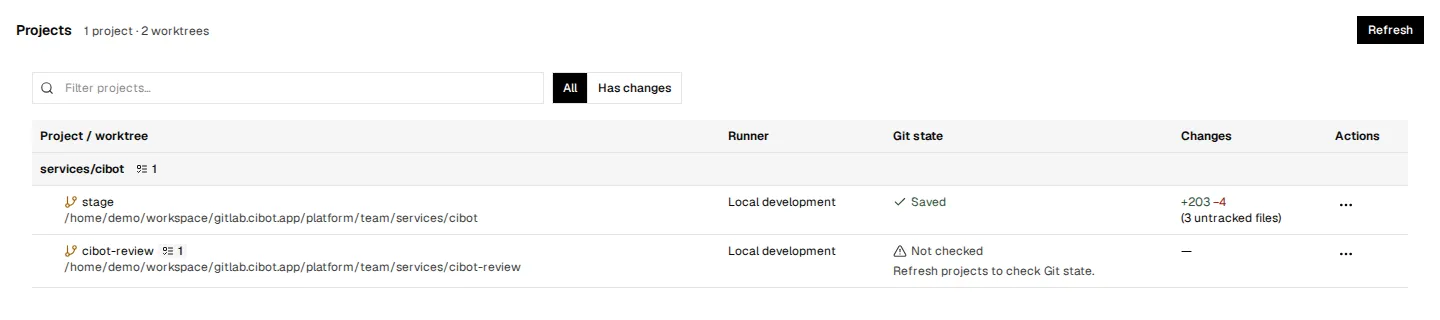
A component example of the Projects inventory and Git information.
Git information beside the location
Project entries can show their branch, commit, changed lines, conflicts, and untracked files. Tracked line changes and untracked files remain separate measurements. An untracked file contributes to a file count, rather than appearing as added lines in the tracked diff.
The information also has a freshness boundary. Locations associated with retained tasks receive background Git monitoring. Other discovered locations keep their saved check between scans. An open browser page is not required to keep monitoring a location that belongs to a task.
That makes the project list useful for orientation, while preserving the difference between current monitoring and a saved observation. A disconnected Runner can leave older information visible. An unavailable check is not presented as proof that a checkout is clean, and a failed calculation retains the last successful information.
The result is more context before a task starts: which directory is available, which branch it contains, and whether its recorded Git state needs attention.
A task starts in the selected worktree
The New task picker connects project discovery to the working terminal. Its locations are grouped into Workspace, Pinned, Recent, and Other projects. Selecting an available worktree creates a task associated with that directory, rather than leaving the project connection implicit in a shell command entered afterward.
Within a project, worktrees without tasks appear first. Checkout directory names provide the remaining order. The task header identifies a linked worktree by its directory name alongside the project, keeping that distinction visible after selection.
When a worktree already has tasks, their count is visible in both Projects and the New task list. A location with existing work can therefore be distinguished from one without a task before another task is created there. For example, a repair worktree can have a task running while another worktree remains available for a separate job. The count includes retained tasks whose shells have stopped.
The task header carries that context into the open workspace. It brings together the project and worktree, branch, task title, and tracked line changes. The directory selected at creation remains identifiable while the task’s terminals are in use.

A component example of a task header showing the project, linked worktree, branch, task, and Git line changes.
Task creation can also start from a project or worktree menu. A project action narrows the picker to that project’s worktrees. A worktree action uses that location directly. The command palette provides another entry point to New task, with search and keyboard navigation through the available locations.
A selected project location remains part of the request. If it is missing or no longer matches the saved checkout, creation fails rather than silently opening a terminal in the general workspace. This preserves the meaning of the original choice when the filesystem changes between discovery and task creation.
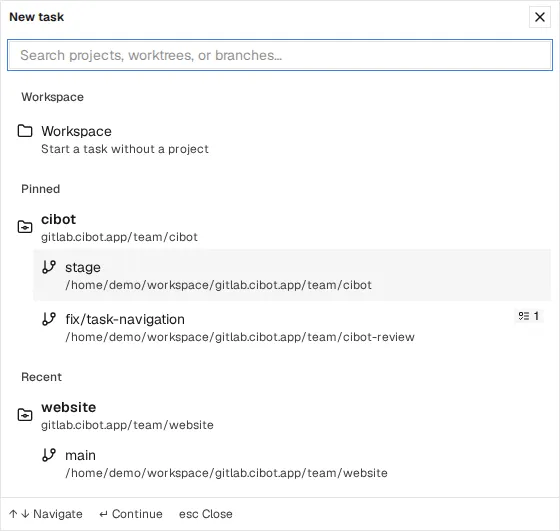
The New task location picker, shown with illustrative locations and an existing task count.
Pins and recent locations support a return to work
Pins keep frequently used projects and worktrees visible even when they have no tasks. They can be managed from the sidebar or the Projects list. Removing a pin removes that preference; it does not delete the checkout, its files, or its tasks.
Recent locations provide a separate route back to work already visited. The picker can therefore present an explicit selection of useful locations alongside recent activity and the wider discovered inventory.
These preferences stay separate from task creation. Creating a task does not pin its location, and pinning a project does not start a process. A project can remain easy to find without keeping an otherwise unnecessary terminal open.
Monitoring inside the workspace
When the Control Plane is configured to run its managed monitoring stack locally in Docker, administrators also get a Monitoring item below Settings in the main menu. It opens the bundled Grafana view inside cibot, with dashboards for the installation’s metrics.
The embedded view uses the Control Plane connection, so a remote browser does not need direct access to the local Grafana port. Monitoring occupies the content area while the task workspace stays mounted. Returning to Work restores the previous task; leaving Monitoring removes the Grafana frame so its dashboard queries stop.
This view is available when managed monitoring is enabled. In account deployments it is restricted to administrators because the metrics describe the whole installation.
Note: cibot is currently in ALPHA. Neither binaries nor source code have been publicly released.